CrushOn AI Not Working? Here's How to Fix It in 2026
When CrushOn AI stops working, the fix depends on whether the issue is platform-wide (server down) or device-specific (your browser or app). This guide walks through both, from fastest check to systematic troubleshooting.
First: Check If CrushOn AI Is Down
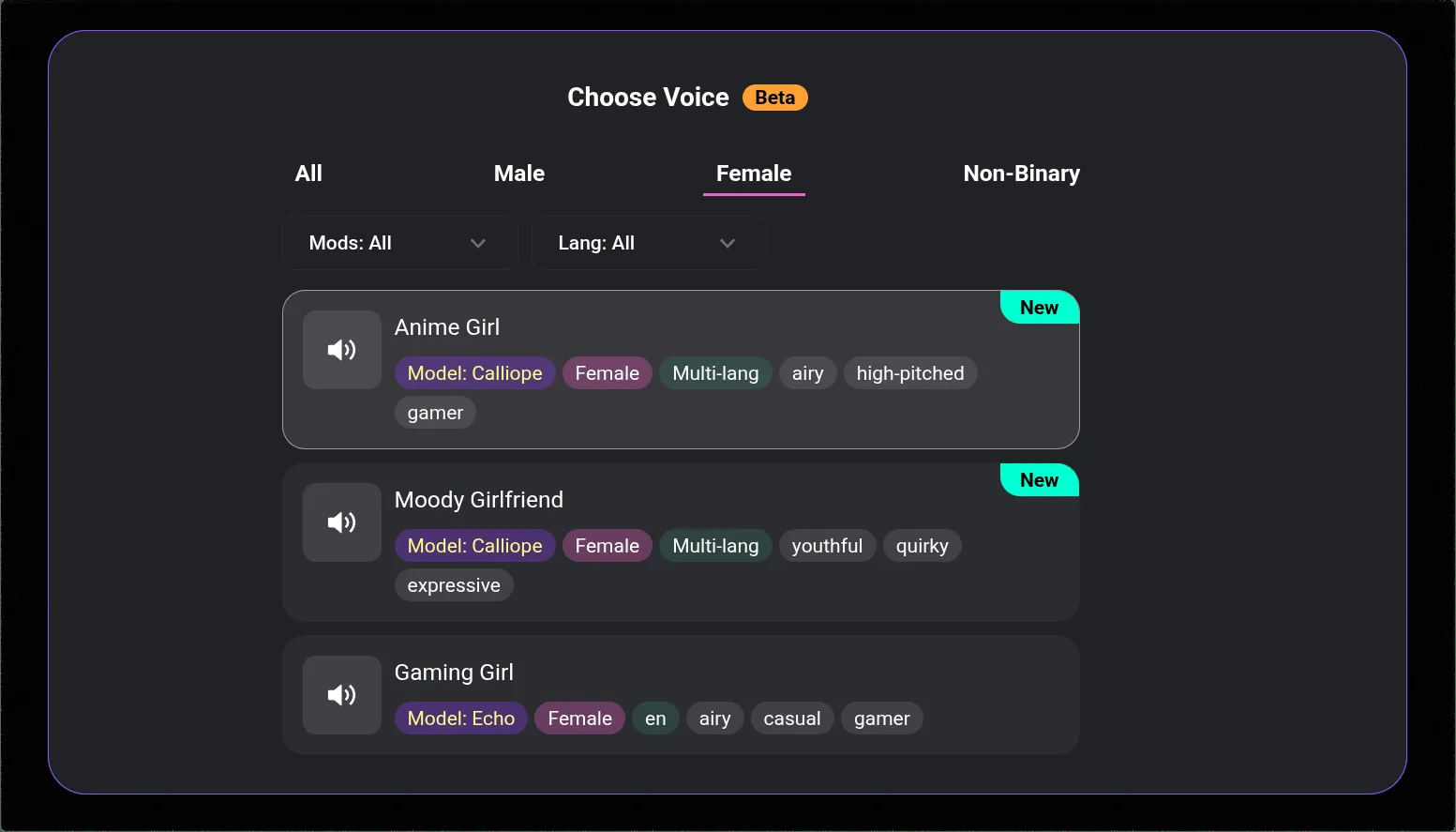
Before troubleshooting your device, confirm the platform itself is operational.
Twitter/X @CrushonAI: Check for recent posts about maintenance or outages. The official account posts status updates when there are widespread issues. No recent posts usually means the problem is on your end.
Discord: The CrushOn AI Discord server (linked from the homepage) posts announcements about service disruptions.
Reddit: Search r/CrushOnAI for recent posts about problems. If multiple users are reporting the same issue in the last hour, it's server-side.
If other users are reporting the same issue: wait for the platform to recover. Server outages typically last minutes to a few hours. Nothing you do on your device will resolve a server-side outage.
If no widespread issues are reported: proceed to device-level troubleshooting.
CrushOn AI Won't Load in Browser
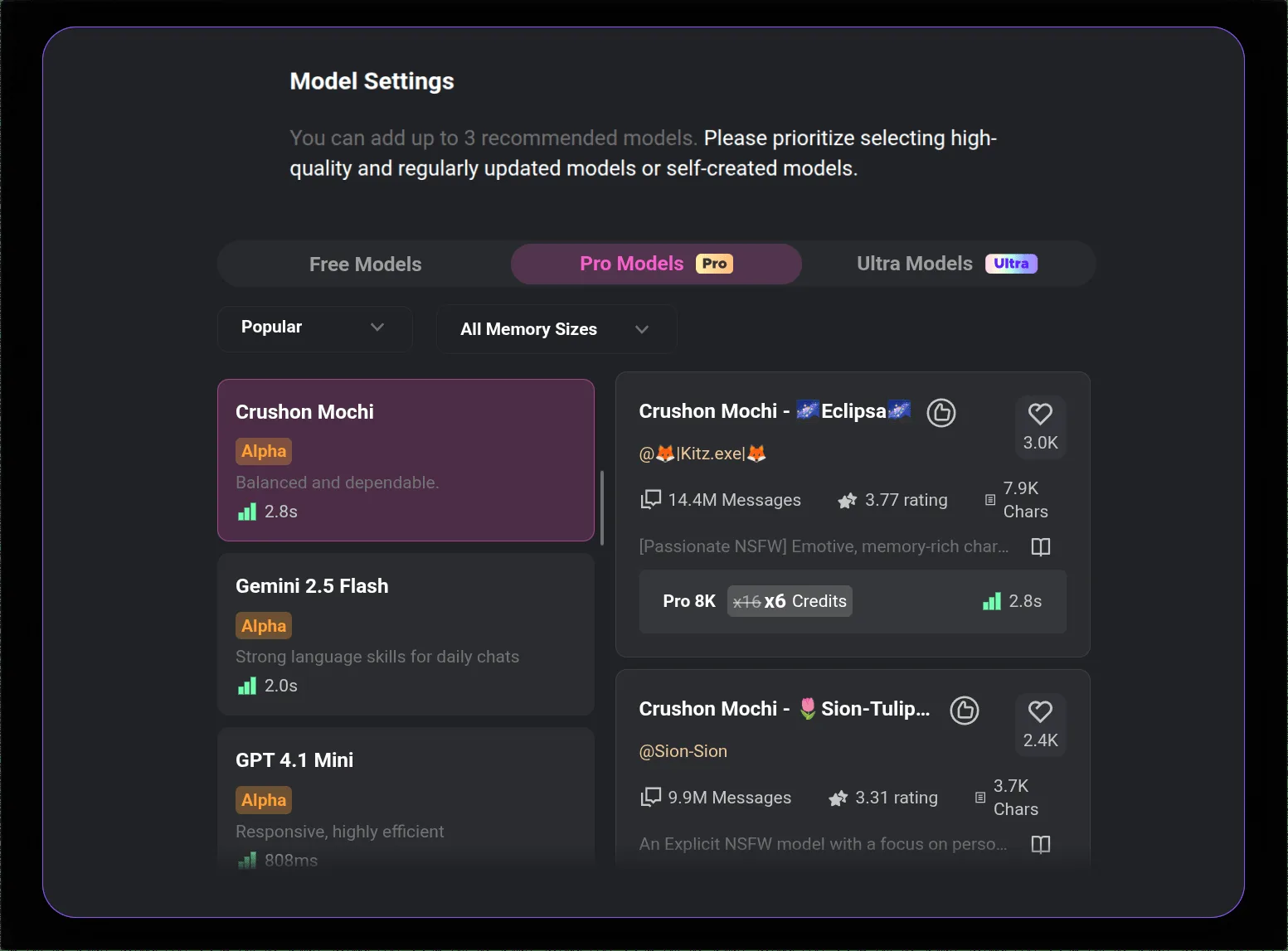
Try these in order:
- Hard refresh: Press Ctrl+Shift+R (Windows) or Cmd+Shift+R (Mac) to bypass cached files
- Try a different browser: If Chrome is failing, try Firefox or Edge
- Disable extensions: Run in incognito mode (which disables most extensions) to see if an extension is blocking the site
- Clear browser cache: Settings > Privacy > Clear browsing data > Cached images and files
- Check your network: Try with a different internet connection (mobile hotspot vs WiFi)
- Try a VPN or disable existing VPN: Geographic routing issues can occasionally affect site access
CrushOn AI App Not Working (Android)
- Force-close the app completely (don't just background it)
- Check for updates in the Google Play Store — update if available
- Clear app cache: Settings > Apps > CrushOn AI > Storage > Clear Cache
- Restart your phone
- If still failing: uninstall, restart device, reinstall
- Switch to the web version at crushon.ai as a temporary alternative
Login or Account Access Problems
Wrong password: Use the "Forgot Password" flow. Check your spam folder for the reset email.
Account not found: Verify you're using the exact email address used at registration. Some users register with Google and try to log in with email, or vice versa.
Account suspended: If you receive a suspension notification, contact support through the in-app help or Discord. Review the platform's terms of service for the likely cause.
Two-factor authentication issues: If 2FA is enabled, ensure your authenticator app is synced correctly.
Messages Not Sending
Check your message count: Free tier has 50 messages/day; Standard has 2,000/month; Premium has 6,000/month. If you've hit your limit, messages won't send until the count resets. Check your message counter in the account dashboard.
Server-side delay: During peak hours, messages may take longer to generate responses. Wait a few minutes rather than sending the same message multiple times.
Refresh and retry: If a message appears stuck in "sending," refresh the page. The message may have sent successfully even if the UI froze.
Start a new conversation: Occasionally, long conversations encounter context limit issues. Start a fresh conversation with the same character to resolve.
CrushOn AI Images Not Loading
"Image not found" error: Server congestion during peak hours. Wait and retry — this is the most common image issue and resolves on its own within minutes.
Images loading blank: Clear browser cache and refresh. Switch browsers if the issue persists.
Image generation not working: Verify you're on Standard or higher tier. Free tier image generation is minimal and may not work for all requests. Check your monthly image allocation — generation stops when the limit is reached.
Saved images not appearing: If images generated but aren't visible in conversation history, refresh the conversation view.
Known 2026 Issues
- DeepSeek model: Reported instability — response drops and behavioral inconsistency. Switch to MythoMax, GPT-4o, or Claude 3.5 Sonnet
- iOS app availability: Not available in all App Store regions. Web version is the universal alternative
- Memory across sessions on Standard/Premium: Expected limitation, not a bug — deep cross-session memory requires Deluxe
Ready to try CrushOn AI?
Visit CrushOn AIContacting CrushOn AI Support
If the above steps don't resolve your issue:
- In-app support: Account settings or profile page usually has a help/contact option
- Discord: Real-time community support, often faster than email
- For billing issues: Contact Subscribestar directly for web subscription issues; Apple/Google support for App Store subscription issues
Response time for support tickets is typically 24-48 hours.
Frequently Asked Questions
Check @CrushonAI on Twitter/X for real-time status. If no recent posts about outages exist and other users aren't reporting issues, the problem is likely device or account-specific. Use the troubleshooting steps above.
Server errors typically indicate high load or a platform-side issue. Wait a few minutes and retry. If the error persists for more than 30 minutes and other users are reporting the same, it's a platform outage — wait for CrushOn AI's official status update.
Slow response times during peak hours (US evenings and weekends) are normal. The GPT-4o and Claude 3.5 Sonnet models can be slower than MythoMax during high demand. Try switching to a faster model or retry during off-peak hours.
Persistent logout issues may be related to browser cookie settings. Ensure cookies are not blocked for crushon.ai in your browser privacy settings. If using a privacy extension, add crushon.ai to the whitelist. Using the app instead of browser can resolve this on mobile.